
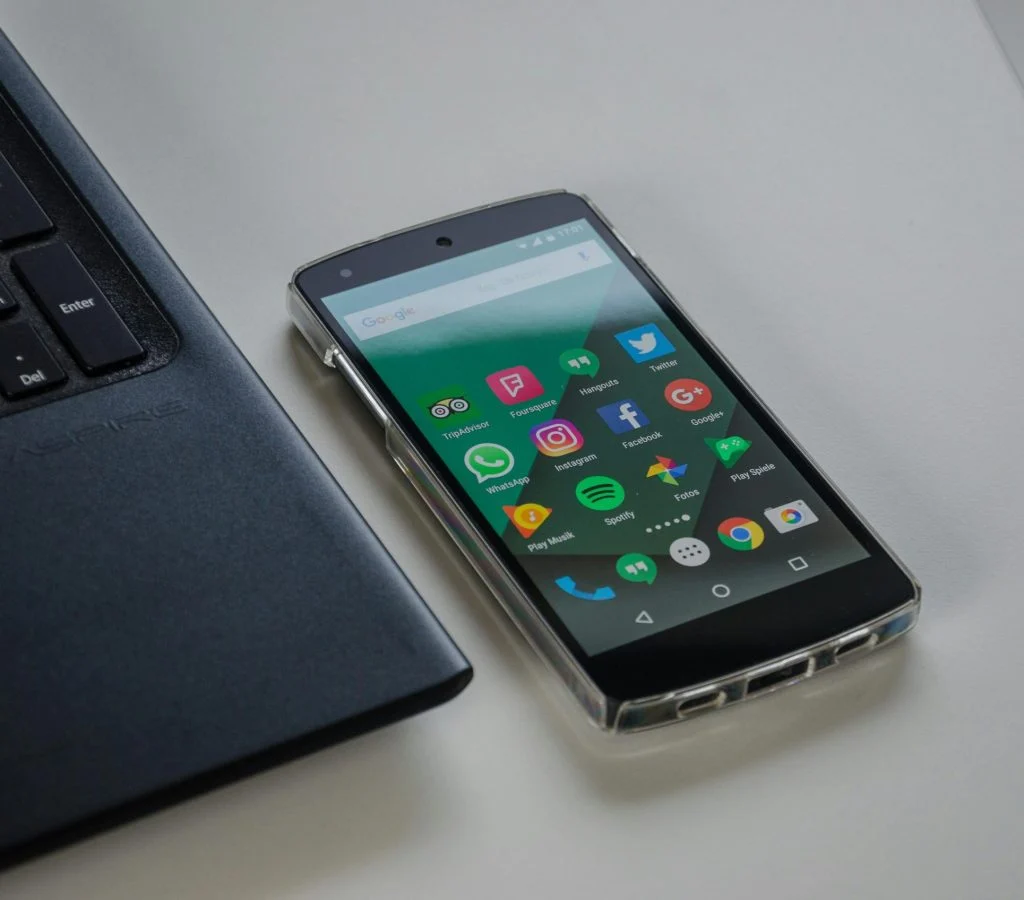

WiFi problems can interrupt browsing, streaming, and communication. Many users experience connection issues on smartphones. Learning how to fix WiFi not working helps restore stable internet access.
Technology experts explain that WiFi issues can be caused by network settings, software problems, or router issues. Most problems can be solved with simple steps.
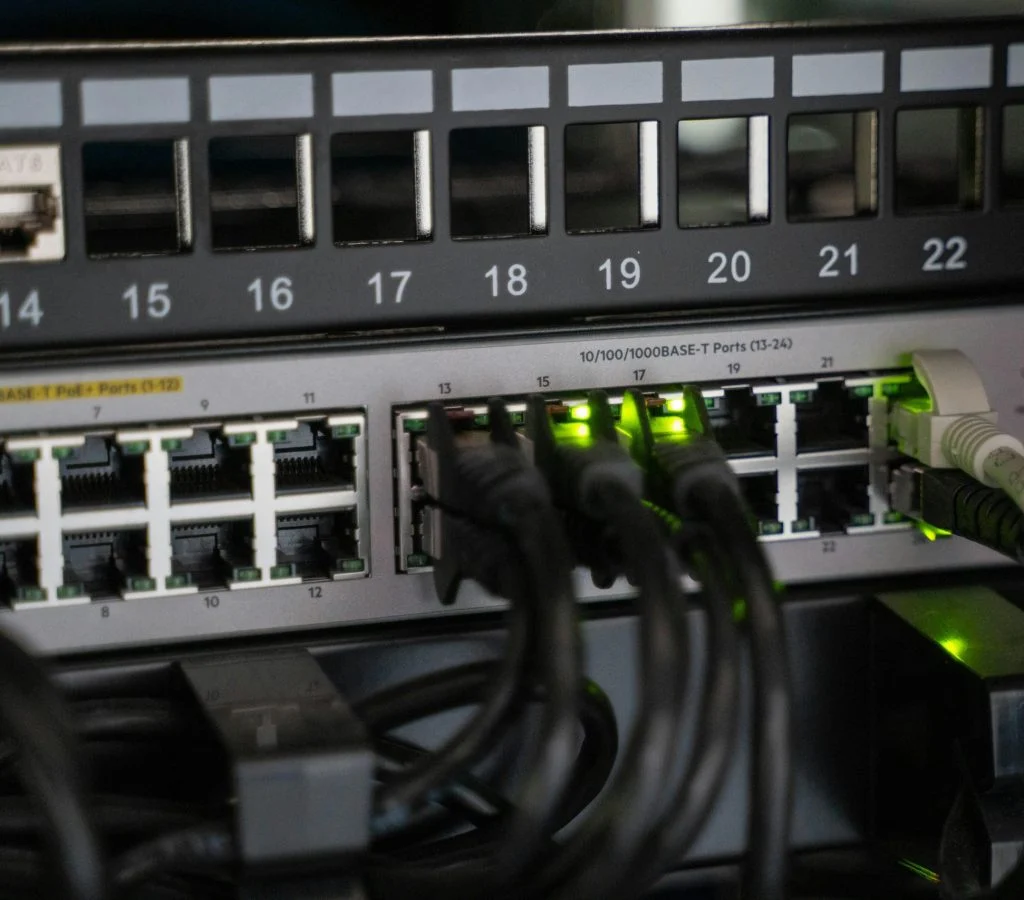
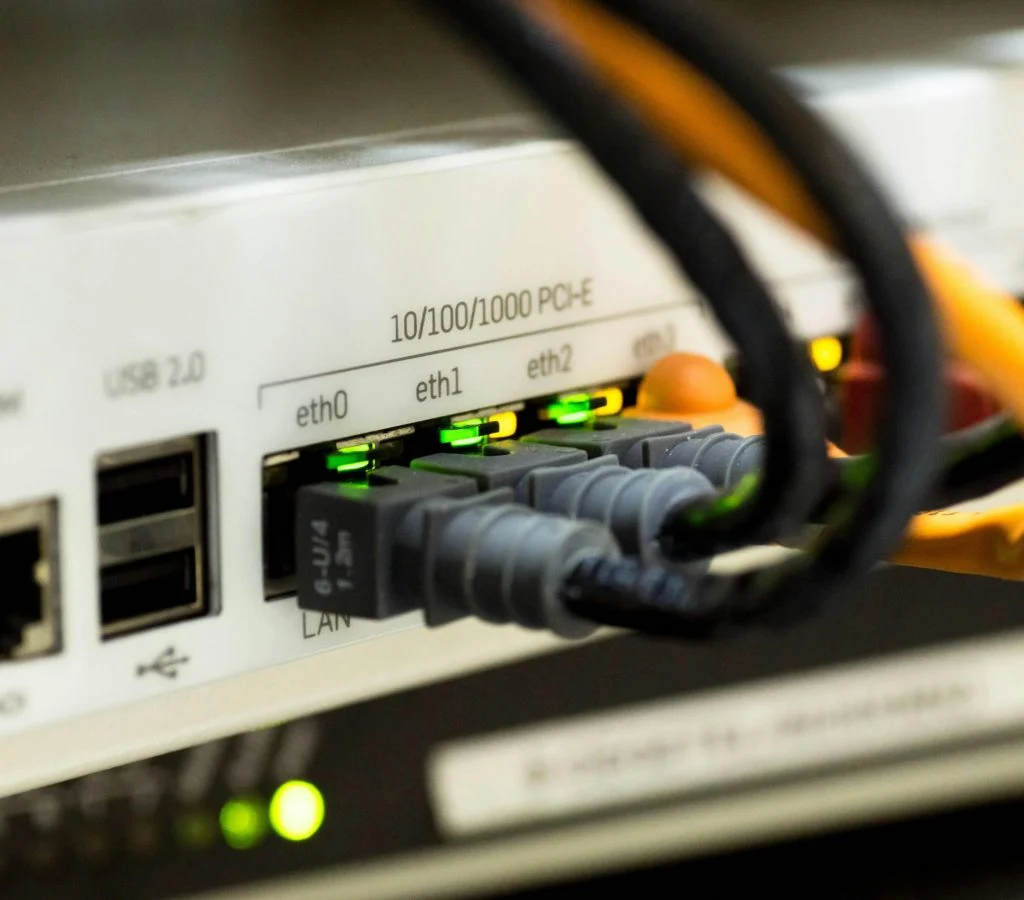
Step 1: Restart Your Smartphone and Router
Restarting both devices clears temporary issues.
Experts recommend this as the first troubleshooting step.
This often resolves connection problems.
Step 2: Turn WiFi Off and On Again
Toggling WiFi resets the connection.
Experts suggest turning WiFi off and then back on.
This refreshes the network link.
Step 3: Forget and Reconnect to Network
Saved networks may have incorrect settings.
Experts recommend forgetting the network and reconnecting.
This resolves configuration issues.
Step 4: Check Airplane Mode Settings
Airplane mode disables wireless connections.
Experts suggest ensuring it is turned off.
This restores connectivity.
Step 5: Update Device Software
Software updates fix bugs that affect WiFi performance.
Experts recommend installing updates regularly.
This improves stability.
Step 6: Reset Network Settings
Resetting network settings clears saved connections and fixes issues.
Experts suggest using this option if other steps fail.
This restores default network configuration.
Step 7: Move Closer to Router
Distance can affect WiFi signal strength.
Experts recommend staying closer to the router.
This improves connection quality.
Frequently Asked Questions
Q: Why is my WiFi not working on my phone?
A: It can be caused by network issues, settings, or software problems.
Q: Does restarting fix WiFi problems?
A: Yes, restarting devices can resolve temporary issues.
Q: Should I reset network settings?
A: Yes, if other solutions do not work.
Q: Does distance affect WiFi?
A: Yes, being far from the router can weaken the signal.
Key Takeaway
Fix WiFi not working issues by restarting devices, reconnecting networks, and updating software. Simple troubleshooting steps can restore internet access quickly. Experts highlight that regular maintenance helps prevent connectivity problems.