


Credit: Soundarapandian MS / Pexels
Step 2: Limit Background Apps to Save Phone Battery
Apps running in the background can drain battery power even when you’re not actively using them. Limiting these apps can help extend battery life.
Mobile engineers suggest reviewing app usage and restricting unnecessary background activity.
This reduces battery drain and improves overall efficiency.
Step 3: Turn Off Unused Connectivity Features
Features like Wi-Fi, Bluetooth, and GPS continue to use battery when left on. Turning them off when they’re not needed can make a difference.
Experts recommend adjusting connectivity settings based on your daily use.
This simple step helps improve battery management.
Credit: Daniel Moises Magulado / Pexels
Step 4: Enable Battery Saver Mode for Better Efficiency
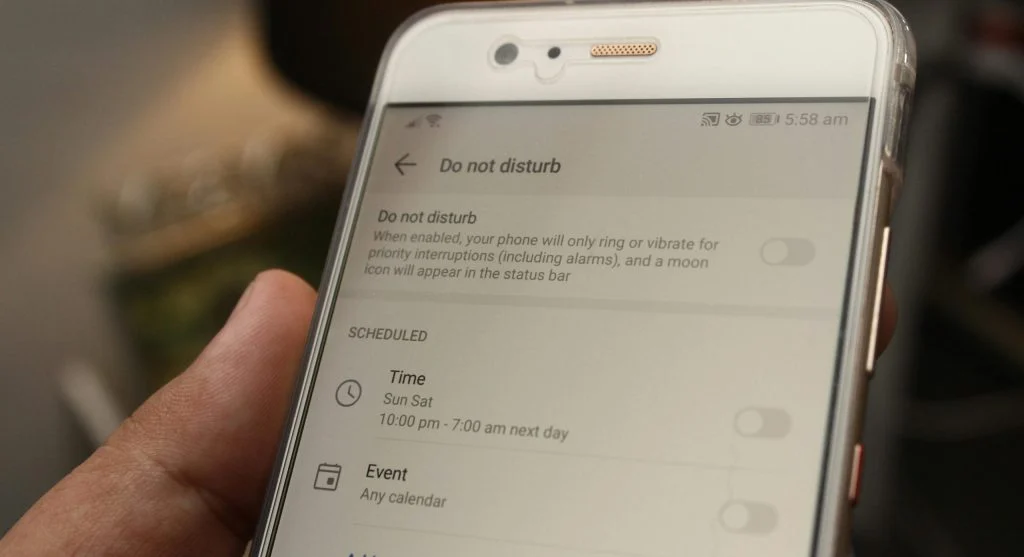
Most smartphones come with a battery saver mode that helps reduce power usage. It limits background activity and adjusts performance to conserve energy.
Hardware specialists explain that this feature can extend usage time, especially when the battery is running low.
Using battery saver mode can help maintain smartphone battery life throughout the day.
Step 5: Keep Software Updated for Battery Optimization
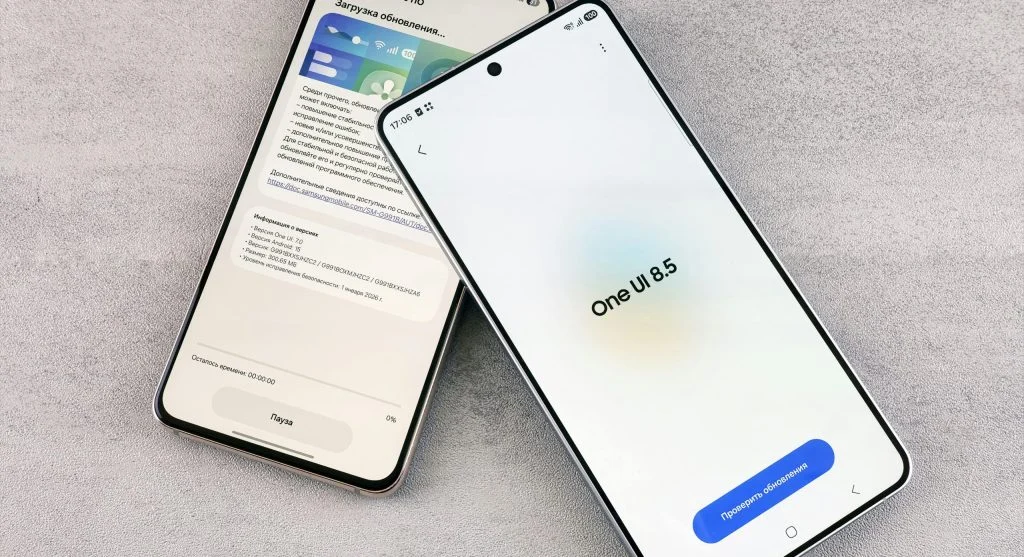
Software updates often include improvements that enhance battery performance. Keeping your device up to date helps ensure it runs more efficiently.
Developers regularly refine systems to reduce power consumption through these updates.
Staying updated supports better overall battery usage.
Credit: Andrey Matveev / Pexels
Frequently Asked Questions
Q: What drains smartphone battery the most?
A: Screen brightness, background apps, and connectivity features are major factors.
Q: Does battery saver mode help?
A: Yes, it reduces background activity and extends battery life.
Q: Should I turn off Wi-Fi and Bluetooth?
A: Turning them off when not in use can help save battery.
Q: Do updates improve battery performance?
A: Yes, updates often include optimizations that improve battery efficiency.